SOLTokenLaunch Tutorial:
Watch a Token Being Made
Updated
A screen-by-screen walkthrough of our Create Token tool, from connecting your wallet to the success screen. The whole flow takes under 60 seconds.
 Create your token
Go to Create Token and connect your wallet
Open the create Solana token page and click Connect Wallet. Phantom, Solflare, Backpack, and other Solana wallets work the same way. Nothing is sent on-chain until you approve the fee at the end.
On the page you'll see something like:
Once connected, the form appears. Fill it in step by step below.
Fill in the same form as on Create Token
The live page uses four stages: Token Identity, Supply & Economics, Optional Features, and Ready to Mint. Below is a read-only preview that mirrors the real create token form one-to-one - same labels, same fields, same order.
Base fee is 0.1 SOL. Stage 3 (Optional Features) is exactly that - optional. You can launch for the base fee alone.
Watch the whole flow
The same form, filled top to bottom in a few seconds - the static field-by-field breakdown is below.
Token Created!
Your SPL token is live on Solana mainnet
This preview matches the real form one-to-one. You can skip Stage 3 entirely and launch for the 0.1 SOL base fee.
When your token is minted
After the transaction confirms, the Create Token page opens a modal with this card (same design as on the live site): Confirmed on Mainnet, Token Created!, mint and signature with copy buttons, links to View Token, Solscan, and Orb, your Token Dashboard, then What's next? with Add Liquidity, Share Token, and Trade on DEX. Yours will show your real mint, signature, and prefilled liquidity link.
Token Created!
Your SPL token is live on Solana mainnet
Mint Address
7xKXtg2CW87d97TXJSDpbD5jBkheTqA83TZRuJosgAsU
Transaction Signature
5BmbBF6RYoRrydPqbxb8gH1ztnwaLbPvWEfmV2U4qzPn9YzQExampleDemoSigNotReal
What's next?
Demo uses sample addresses. After a real mint, your modal shows live values and your Add Liquidity shortcut includes your mint, supply, and decimals.
Want more detail on a step?
Steps 1 to 3 above are the whole flow. Each of these guides covers one part of it properly.
Name, symbol, supply and decimals
Which fields are locked at mint, which you can change while you hold update authority, and sensible defaults.
Mint, freeze and update authority
What each revoke add-on does, why buyers check for it, and why it cannot be undone.
Logo, links and metadata
How your logo and social links reach wallets and explorers, and what to do when they do not show.
Mistakes to avoid
The irreversible errors first-time launches make, from wrong decimals to unplanned liquidity.
Next Steps After Creating Your Token
Following these steps ensures your token launch is successful.
Verify on Block Explorer
Visit Solscan.io and search for your token's mint address. Verify all details are correct: name, symbol, supply, and metadata. Take a screenshot for your records.
Plan Your Launch
Don't rush to launch immediately. Use our pre-launch checklist to ensure you're ready. Plan your marketing, prepare your community, and set up social media accounts. See our launch strategy guide for comprehensive planning.
Add Liquidity
To make your token tradeable, add liquidity to a Raydium pool. On the Create Token success screen, click Add Liquidity Now to open our Create Liquidity tool with mint, decimals, and supply prefilled. You can also use Raydium or Orca directly. See our liquidity guide for full instructions and our DEX comparison.
Build Your Community
Start building your community before launch. Create Twitter, Telegram, and Discord accounts. Engage with crypto communities and share your vision. See our community building guide for strategies.
Market Your Token
Effective marketing is crucial for success. Use social media, crypto forums, and community engagement. See our marketing guide for comprehensive strategies.
Frequently Asked Questions
Short answers to common questions.
How long does it take to create a token?
Do I need to know how to code?
How can I make my token tradeable?
Can I rename or delete my token?
What's the minimum cost to create a token?
Should I revoke token authorities?
What wallet should I use?
Can I create multiple tokens?
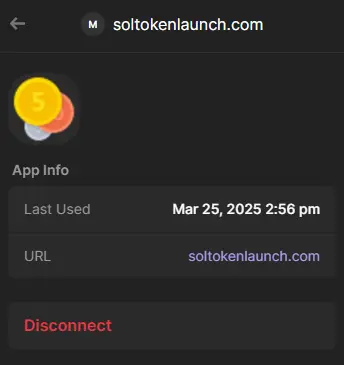
How to disconnect your Phantom wallet
If you want Phantom to prompt again next time, remove the site from Connected Apps:
- Open Phantom Wallet.
- Go to Settings → Connected Apps.
- Select SOLTokenLaunch.com and tap Disconnect.
- Refresh this page.
Ready to launch?
Create your Solana token today
No coding required. Live on mainnet in under 60 seconds.